Is your profile costing you leads? Get a 9-point professional audit and rewrite. No calls needed.

LinkedIn ID Verification Stuck? Read This Before You Do Anything
Most people make it worse without realising it. Here is what actually works and in what order.
LINKEDIN LEAD GENERATIONLINKEDIN OUTREACH
John Paul
3/23/20267 min read
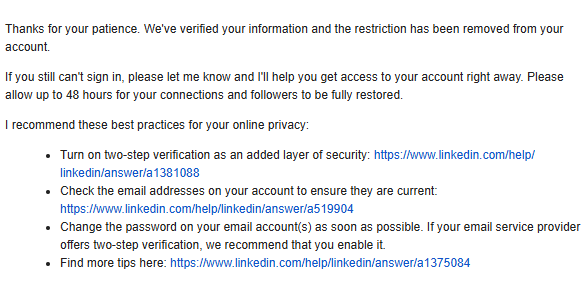
LinkedIn ID Verification Stuck? Here Is What to Do (And What Not to Do)
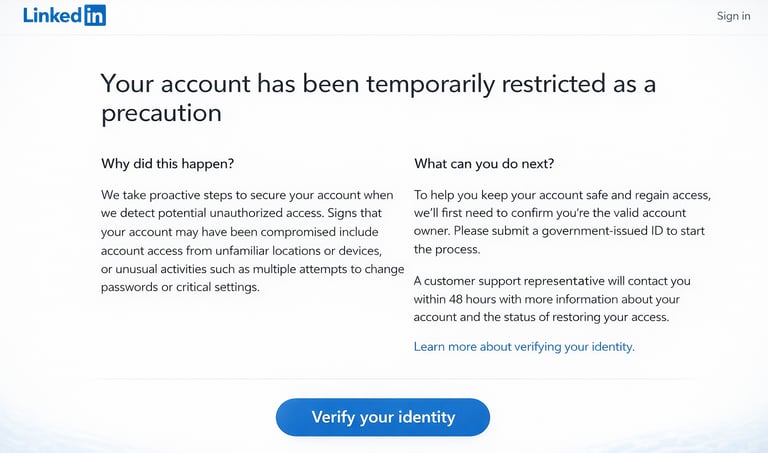
You upload your ID. You sit back and wait for the green tick. And then nothing happens.
One day turns into three. Three days turns into a week. Your account is frozen, your inbox is filling up, and somewhere in the back of your mind you are starting to wonder if ten years of professional connections just quietly disappeared.
I have been through this. I know what that silence costs, and I know what most people do wrong while they are waiting. This post is the guide I wish I had on day one. It covers why it happens, how long the process really takes, and the exact steps that will get you back in without accidentally making things worse.
Why LinkedIn Locked You Out in the First Place
Here is the thing that most people get wrong when this happens. LinkedIn is not targeting you. It does not have a grudge against your account. The truth is a lot less personal than that.
The identity review system is built to fail safe. The moment the algorithm spots anything it cannot explain, it shuts the door. It does not know you from a bot sitting in a warehouse somewhere. It saw a signal that did not add up and it pulled the brake.
There are four things that most commonly cause this to happen.
The first is a location jump. You log in from your home in the morning and then connect from airport Wi-Fi a few hours later. To the system that looks exactly like someone hijacking your session from another country.
The second is a sudden spike in activity. You have been quiet for months and then you send 50 connection requests in two hours. That pattern reads like automated bot behaviour to the algorithm.
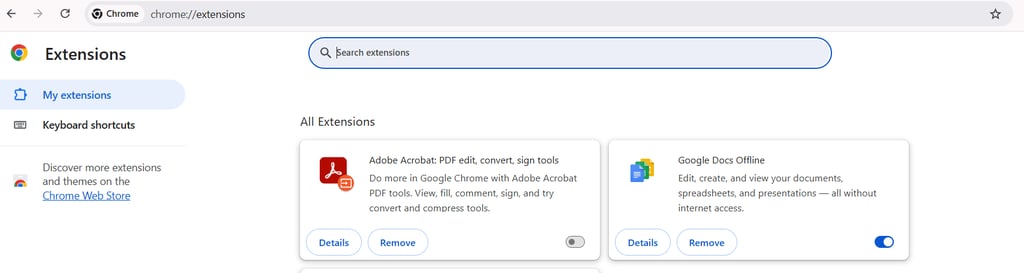
The third is browser extensions. Lead generation tools and scrapers leave digital fingerprints that the system picks up immediately. If you have any of those installed, that is very likely what triggered this.
The fourth is a name mismatch. Your profile says T J Smith but your passport says Timothy Joseph Smith. The verification system is doing a character by character comparison. Even one small difference is enough to kick your case into manual review, which is the slowest queue they have.
How Long This Actually Takes
Most people assume they will be back in within a few hours of uploading their ID. That is almost never how it goes, and expecting it makes the wait feel even worse.
There are three phases to understand before you do anything else.
Verification processing takes between one and three days under normal circumstances. If anything about your submission looks unclear, even something as minor as a slight name variation, your case gets moved into manual review. That adds another seven to fourteen days on top. Full account restoration can take up to 21 days from the moment you first submitted.
The 21 day mark is the important one to hold in your mind. Before that point your only job is to be patient and be still. After that point, if nothing has moved, that is when you escalate and ask specifically for a human to look at your case.
Stop Trying to Fix It
Here is what almost everyone does when they get locked out. They resubmit their ID three or four times. They open multiple support tickets because the first one felt like it went nowhere. They try logging in from a different device, a different browser, their partner's phone. Every single one of those actions is making the situation worse.
Think of it like quicksand. The more you move, the deeper you go. Every failed login attempt resets the risk timer. Switching devices while your case is being processed creates a new conflict for the system to figure out. Sending multiple tickets buries your original request under a pile of duplicates.
The approach that actually works is the direct opposite of what panic tells you to do. It comes down to three things.
Strategic Stillness
Once you submit your ID, leave the account completely alone for 48 to 72 hours. No login attempts. No password changes. Let the system see a calm and predictable user instead of someone frantically rattling the handle every few hours.
Optical Clarity
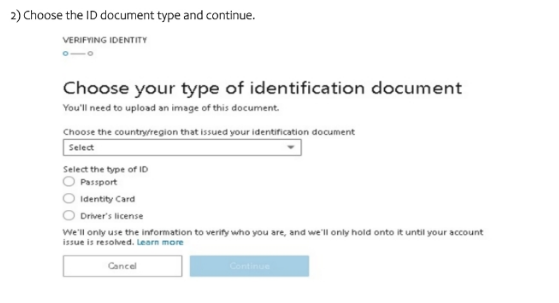
The photo of your ID needs to be genuinely clean. No glare on the laminate. No shadows across your face. No cropped edges cutting off any text. Shoot it in natural light and make sure every single detail is fully readable. Identity verification systems look for what are called liveness indicators. If anything looks unclear or off, the AI can flag it as a potential forgery and send the whole thing back for another round of review.
Digital Consistency
Pick one device and one browser and do not touch either of them for the duration. If you normally use Chrome on your laptop, stay there. Switching to a tablet or a different network while your case is open sends fresh signals that the system has to interpret, and every new signal adds time.
What to Do If You Are Still Stuck After 7 Days
A week in with no update means it is time to reach out. But the way you do it matters a lot more than most people realise.
Support teams are not looking for your backstory. They want specific, clean information. One short message with your case number and a calm, direct request will do more for you than three paragraphs explaining how important your account is to your business.
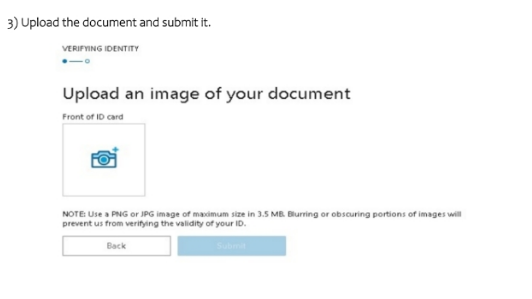
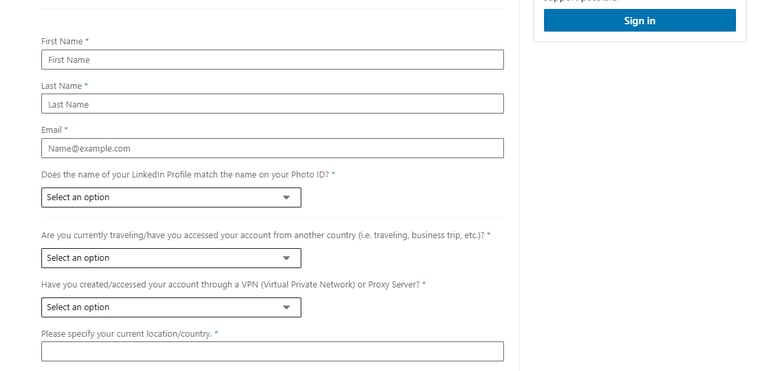
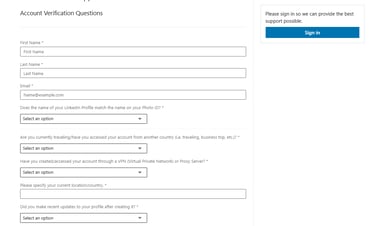
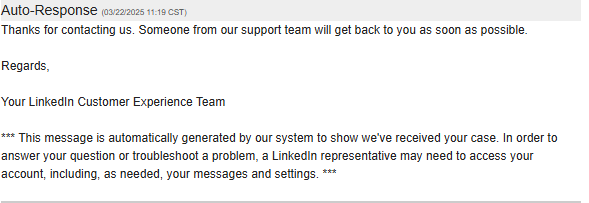
Use the LinkedIn Account Verification Appeal form. You can access it even while you are locked out at this address:
https://www.linkedin.com/help/linkedin/ask/TS-F-APPEAL
You can attach your government ID directly and submit it without signing in to your account.
You can also message the LinkedIn Help team on X at @LinkedInHelp. Response times there can vary quite a bit, but it puts your issue in a public facing queue which can sometimes help things move along a bit faster.
Here is a message template that works well:
Subject: Case [Your Case Number] Identity Verification Support
Hello LinkedIn Support,
I submitted my government issued ID for verification on [Date]. My account remains restricted and this is affecting my professional operations. I am ready to provide any additional documentation needed to confirm my identity.
Thank you for your time.
Send it once. Do not open a second ticket. Do not follow up for at least another seven days unless they reply asking you for something specific. When you hit the 21 day mark with no resolution, send one short follow up, reference your case number and ask clearly for a status update.
The Recovery Checklist
Before you do anything, go through this audit first:
Disable all LinkedIn browser extensions. Lead gen tools, scrapers, anything at all that touches your LinkedIn session. Remove them or turn them off completely.
Check your ID expiry date. An expired document gets rejected the moment it is submitted. No amount of resubmitting is going to change that outcome.
Compare your profile name to your legal name on your ID. If you use a shortened name or a nickname on LinkedIn, make a note of it and mention the difference clearly in your support message.
Revoke third party app access. Go into your LinkedIn settings and remove access for any automation tools or bots you have previously connected to your account.
Once that is done, follow this timeline and stick to it:
Day 1 — Submit your ID. Write down the exact date and time you did it.
Day 4 — Your stillness window is up. Log in once only to check for any update and then leave it alone again.
Day 7 — No movement? Send your first support message using the template above.
Day 14 — Send a short follow up via @LinkedInHelp on X. Include your case number and keep it to two or three sentences.
Day 21 — Send a final appeal. Reference your previous messages and ask specifically for a manual review.
Write every step down as you go. Dates, times, what you sent and where you sent it. If a real human agent eventually looks at your case, a clear paper trail is far more useful than a long explanation of how frustrated you have been.
What to Do When You Finally Get Back In
When your feed loads again the temptation is to post something, catch up on a hundred messages and reconnect with everyone at once. Please resist that instinct.
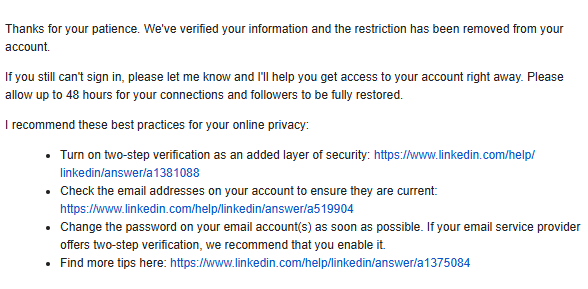
LinkedIn watches restored accounts closely for the first month after they come back. Think of it as a probationary period. One post per day in week one. No accepting a wave of connection requests all at once. No third party tools for at least 30 days. You are essentially rebuilding trust with the algorithm the same way you would warm up a brand new account.
Use this experience as a prompt to protect yourself going forward. Export your contact list every single month. Build an email list that you actually own. If a platform lockout can quietly shut down your pipeline for three weeks, your professional network is carrying too much risk on one company's infrastructure.
The short version: LinkedIn locked you out because the system saw something unfamiliar. It was not personal and it is not permanent. Submit a clean ID photo, leave the account alone for 72 hours, use one device and one browser throughout, and if you are still stuck after seven days send one short factual message with your case number. The system works. It just works slowly. Your job right now is to stop adding noise and let it run.
Found this helpful? Browse more practical LinkedIn strategy and B2B lead generation guides on this site.
Contact
Ready to grow? Let’s start a real conversation.
© 2026 Growth On LinkedIn. Operated by John Paul. All rights reserved.
Your email stays private. Unsubscribe anytime.